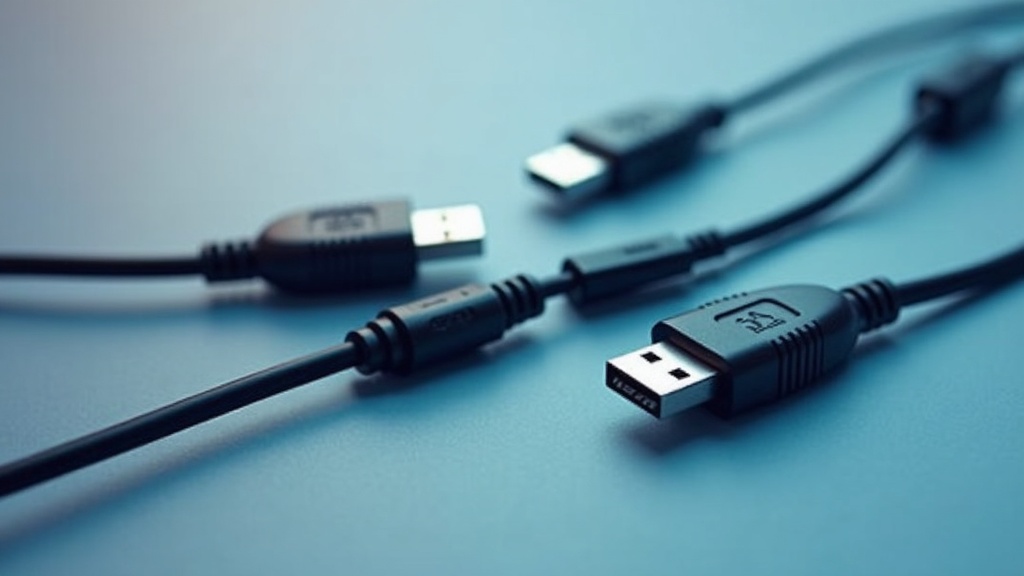
USB cables and adapters explained: learn the essential differences between USB types, speeds, and connectors to choose the right cable for your devices. This guide covers everything from USB-A to USB-C and USB4.
Table of Contents
- Quick Summary
- USB Cables in Context
- Introduction
- USB Connector Types and Their Roles
- USB Speed Standards: From USB 2.0 to USB4
- Power Delivery and Charging Capabilities
- Video and Data Alternate Modes
- Frequently Asked Questions
- Comparison: USB-A vs. USB-B vs. USB-C
- Practical Tips for Choosing and Using USB Cables
- Final Thoughts on USB Cables and Adapters Explained
- Useful Resources
USB cables and adapters explained is a comprehensive overview of USB technology, covering connector types, speed standards, power delivery, and alternate modes. This guide helps you understand which cables and adapters work best for charging, data transfer, and video output.
USB Cables in Context
- USB4 supports data transfer speeds up to 80 Gbps, enabling high-resolution displays and fast external storage (USB Implementers Forum, 2024).[1]
- USB Power Delivery revision 3.1 increases maximum power delivery over USB-C to 240 watts (USB Implementers Forum, 2024).[2]
- USB 2.0 cables are typically limited to about 5 meters (approximately 16 feet) without signal conditioning (USB Implementers Forum, 2024).[3]
Introduction
USB cables and adapters explained: this guide demystifies the world of Universal Serial Bus technology. With so many connector shapes, speed standards, and power delivery capabilities, choosing the right cable can be confusing. Whether you need to charge a smartphone, transfer files to an external drive, or connect a laptop to a monitor, understanding USB is essential. We will cover the main connector types – USB-A, USB-B, USB-C, and Micro-USB – along with the speed standards from USB 2.0 to USB4. We also explain power delivery and alternate modes for video. By the end, you will know exactly which cable fits your needs.
USB Connector Types and Their Roles
USB connectors have evolved over decades, each designed for specific device categories. The rectangular USB-A connector is the most familiar, found on computers, chargers, and peripherals. It supports USB 2.0, 3.0, and 3.1 speeds, but it is not reversible. USB-B connectors are squarish with sloped corners, commonly used on printers and external hard drives. Micro-USB, once dominant for smartphones and tablets, is smaller and supports USB 2.0 or USB 3.0 speeds. However, the USB-C connector has become the modern standard. It is reversible, compact, and supports all current USB speeds, power delivery, and alternate modes. As the USB Implementers Forum states, “USB Type‑C is a reversible connector that supports everything from USB 2.0 up to USB4, enabling data, power, and display over a single cable.”[4] Understanding these connectors helps you pick the right cable for your device.
USB-A: The Universal Legacy
USB-A remains ubiquitous on laptops, desktop computers, and wall chargers. It is durable and easy to plug in, but its non-reversible design can be frustrating. USB-A connectors are available in USB 2.0 (480 Mbps) and USB 3.x (up to 10 Gbps) variants. The blue interior of a USB 3.0 port indicates higher speed. For example, USB 3.2 Gen 2 defines a maximum data rate of 10 Gbps over supported cables and connectors such as USB‑A and USB‑C (USB Implementers Forum, 2024).[5] While USB-A is being phased out in favor of USB-C, it remains essential for backward compatibility.
USB-C: The Future-Proof Connector
USB-C is now standard on most modern smartphones, tablets, and laptops. It supports data transfer speeds from USB 2.0 up to USB4, and power delivery up to 240 watts. Its reversible design makes it user-friendly. USB-C also supports alternate modes like DisplayPort and HDMI, allowing a single cable to carry video. The VESA organization notes, “The DisplayPort over USB‑C standard enables a single USB‑C cable to carry high‑bandwidth video, audio, data, and power, simplifying connectivity for modern devices.”[6] This makes USB-C the most versatile connector available.
USB Speed Standards: From USB 2.0 to USB4
USB speed standards determine how fast data transfers between devices. USB 2.0, with a maximum speed of 480 Mbps, is sufficient for keyboards, mice, and slow external storage. USB 3.0 (now called USB 3.2 Gen 1) offers 5 Gbps, while USB 3.2 Gen 2 doubles that to 10 Gbps. USB 3.2 Gen 2×2 uses two lanes to reach 20 Gbps over USB-C. The latest standard, USB4, can achieve up to 80 Gbps. As the USB Implementers Forum explains, “USB4 consolidates the USB‑C ecosystem by defining a single high‑performance architecture that can support up to 80 Gbps data rates, tunneling of PCIe and DisplayPort, and robust power delivery.”[1] For most users, USB 3.2 Gen 2 (10 Gbps) is sufficient for external SSDs and backups. However, for demanding tasks like video editing or connecting multiple high-resolution monitors, USB4 is the best choice. Matching the cable to the device’s speed capability is crucial to avoid bottlenecks.
Power Delivery and Charging Capabilities
USB cables are not only for data – they also deliver power. Standard USB 2.0 and 3.0 ports provide up to 2.5 watts (5V at 0.5A), enough for charging small devices slowly. USB-C with USB 3.1 can provide up to 10 Gbps bandwidth and up to 100 watts of power (20 volts at 5 amps) over a single cable (Consolidated Electronic Wire & Cable, 2024).[7] USB Power Delivery (USB PD) revision 3.1 increases that to 240 watts, enabling charging of power-hungry laptops and monitors. The USB Implementers Forum states, “USB Power Delivery over USB‑C allows up to 240 watts of power to be delivered, expanding support from phones and tablets to high‑performance laptops and displays.”[2] When selecting a charging cable, ensure it supports the appropriate power level. For example, a laptop that requires 60 watts needs a cable rated for at least 60W PD. Active USB cables with built‑in repeaters can extend USB connections up to approximately 80 feet while maintaining signal integrity beyond typical passive cable limits (Data Alliance, 2024).[8]
Video and Data Alternate Modes
USB-C cables can carry video signals using alternate modes. DisplayPort over USB-C allows a single cable to connect a laptop to a monitor, supporting high resolutions and refresh rates. Similarly, HDMI over USB-C uses an adapter or a cable with built-in alternate mode. USB‑C connectors and cables can be used to carry HDMI and DisplayPort video signals via alternate modes, allowing adapters to connect a single USB‑C port to modern displays (USB Implementers Forum, 2024).[10] This simplifies setups: one cable for both video and data. For example, a user can connect a laptop to a monitor using a USB-C to HDMI cable, while also charging the laptop through the same cable if the monitor supports power delivery. When buying adapters, look for those that explicitly support the alternate mode you need.
Important Questions About USB Cables and Adapters Explained
What is the difference between USB-A, USB-B, and USB-C?
USB-A is the rectangular connector found on computers and chargers, used for data and charging. USB-B is squarish and used for printers and external drives. USB-C is the modern reversible connector that supports high-speed data, power delivery, and video. USB-C is becoming the universal standard due to its versatility and support for USB4 and USB PD.
Can I use a USB-C cable to charge my laptop?
Yes, if your laptop supports USB-C charging and the cable is rated for the required power. USB Power Delivery can deliver up to 240 watts, enough for most laptops. Check your laptop’s power requirements and use a cable that supports at least that wattage. Many modern laptops use USB-C for both charging and data.
Do I need a special cable for USB 3.2 or USB4 speeds?
Yes, to achieve USB 3.2 Gen 2 speeds (10 Gbps) or USB4 speeds (up to 80 Gbps), you need a cable certified for those standards. Standard USB 2.0 cables will limit transfer rates to 480 Mbps. Look for cables marked with the appropriate USB speed rating, such as USB 3.2 Gen 2 or USB4. Using a higher-rated cable ensures optimal performance.
Can USB-C carry HDMI or DisplayPort signals?
Yes, USB-C supports alternate modes that carry HDMI and DisplayPort signals. You can use a USB-C to HDMI cable or adapter to connect a laptop to a monitor. This allows video, audio, and sometimes power delivery over a single cable. Ensure your device supports the alternate mode and that the cable is compatible.
Comparison: USB-A vs. USB-B vs. USB-C
Choosing the right USB connector depends on your devices. The table below compares the three main types across key features.
| Feature | USB-A | USB-B | USB-C |
|---|---|---|---|
| Shape | Rectangular | Square with sloped corners | Reversible oval |
| Max Speed | Up to 10 Gbps (USB 3.2 Gen 2) | Up to 10 Gbps (USB 3.2 Gen 2) | Up to 80 Gbps (USB4) |
| Power Delivery | Up to 100W (with USB PD) | Up to 100W (with USB PD) | Up to 240W (USB PD 3.1) |
| Video Support | No | No | Yes (alternate modes) |
| Common Uses | Computers, chargers, peripherals | Printers, external drives | Modern phones, laptops, monitors |
Practical Tips for Choosing and Using USB Cables
To get the most from your USB cables, follow these tips. First, always match the cable’s speed rating to your device. Using a USB 2.0 cable with a USB 3.0 drive will result in slow transfers. Second, invest in certified USB-C cables that support the latest standards like USB4 and USB PD. This ensures compatibility and safety. Third, for video, use cables that explicitly state support for DisplayPort or HDMI alternate modes. Fourth, keep cable length in mind: longer passive cables can reduce performance, especially for high-speed data. Active cables with repeaters can extend reach without signal loss. Fifth, label your cables to avoid confusion, especially when you have multiple similar-looking USB-C cables. These practices will save time and prevent frustration.
For more about Hdmi cables for laptops, see find hdmi cables for laptops resources.
Final Thoughts on USB Cables and Adapters Explained
USB cables and adapters explained: understanding the differences between connector types, speed standards, and power delivery is essential for modern connectivity. USB-C is the most versatile choice, supporting high-speed data, charging, and video. Always verify that your cable matches your device’s capabilities to avoid performance issues.
Useful Resources
- USB4 Specification Overview. USB Implementers Forum.
https://www.usb.org/usb4 - USB Power Delivery Revision 3.1 Specification Update. USB Implementers Forum.
https://www.usb.org/document-library/usb-power-delivery - USB 2.0 Specification. USB Implementers Forum.
https://www.usb.org/document-library/usb-20-specification - USB Type‑C Cable and Connector Specification Overview. USB Implementers Forum.
https://www.usb.org/usb-type-c - USB 3.2 Specification. USB Implementers Forum.
https://www.usb.org/document-library/usb-32-specification - VESA Updates DisplayPort Over USB‑C Guidelines. VESA.
https://www.vesa.org/featured-articles/displayport-over-usb-type-c - Ultimate Guide USB Cables. Consolidated Electronic Wire & Cable.
https://www.conwire.com/blog/ultimate-guide-usb-cables/ - USB Cables & Adapters. Data Alliance.
https://www.data-alliance.net/usb-cables-adapters/ - USB Connector Type Guide. Newnex.
https://newnex.com/usb-connector-type-guide.php - USB Type-C DisplayPort Alt Mode. USB Implementers Forum.
https://www.usb.org/document-library/usb-type-c-displayport-alt-mode - The Complete Guide to USB Cable Types. Anker.
https://www.anker.com/au/story/cables/complete-guide-to-usb-cables